
Written by: Segun Akomolafe
Your home WiFi network serves as the digital gateway to your personal life, connecting everything from smartphones and laptops to smart home devices and security cameras. With cyber threats evolving daily and hackers constantly developing new attack methods, understanding how to protect your home WiFi network has become essential for every household. A single security weakness can expose your banking information, private communications, and personal data to malicious actors.
This comprehensive guide walks you through proven security measures that shield your wireless network from unauthorized access, data breaches, and cyber attacks. Whether you’re setting up a new router or strengthening existing defenses, these practical steps will transform your vulnerable network into a fortress that keeps intruders out while maintaining the convenience modern life demands.
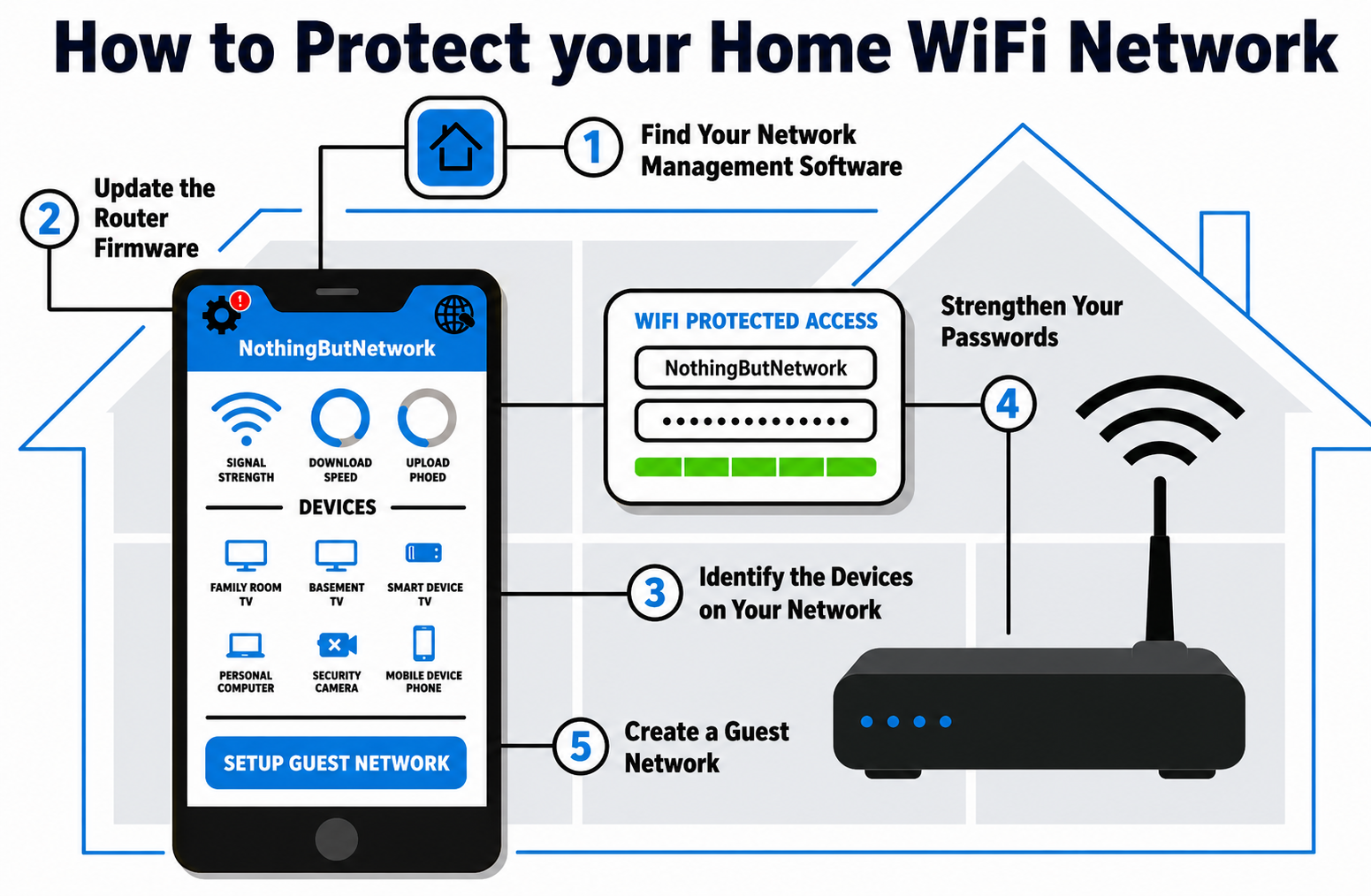
Understanding WiFi Security Threats
Before diving into WiFi protection strategies, you need to recognize the dangers lurking around unsecured networks. Hackers use various techniques to breach home WiFi systems, from basic password guessing to sophisticated man-in-the-middle attacks. The most common threats include unauthorized network access where neighbors or strangers piggyback on your internet connection, slowing your speeds and potentially engaging in illegal activities under your IP address.
Data interception represents another serious risk where attackers capture sensitive information traveling across your network. Without proper encryption, everything from credit card numbers to private messages becomes visible to anyone monitoring your WiFi traffic. Malware distribution through compromised networks can infect every connected device, turning your smart home into a botnet that launches attacks on others while stealing your personal information.
Read more: WiFi 6 Vs. WiFi 5: What are the differences?
Step 1: Change Default Router Credentials Immediately
The first critical step in learning how to protect your home WiFi network involves changing your router’s default administrator password. Manufacturers ship routers with generic login credentials that anyone can find online. Hackers maintain databases of default passwords for every router model, making this the easiest entry point to your network settings.
Access your router’s admin panel by typing its IP address into your browser—typically 192.168.1.1 or 192.168.0.1. Look for the security or administration section and create a unique, complex password combining uppercase letters, lowercase letters, numbers, and special characters. Never reuse passwords from other accounts, as a breach elsewhere could compromise your entire network infrastructure.
Essential Router Password Requirements:
- Minimum 16 characters for maximum security
- Mix of uppercase, lowercase, numbers, and symbols
- Avoid dictionary words and personal information
- Use a password manager to store complex credentials
- Change passwords every 90 days for enhanced protection
- Never share admin credentials with untrusted individuals
Step 2: Enable WPA3 Encryption (or WPA2 at Minimum)
Wireless encryption scrambles data transmitted over your network, making it unreadable to unauthorized interceptors. When considering how to protect your home WiFi network, choosing the right encryption protocol makes the difference between a secure fortress and an open door. WPA3 represents the latest and strongest standard, using individualized data encryption that protects against password guessing attacks and secures public networks.
If your router does not support WPA3, enable WPA2-AES as the next best option. Never use outdated WPA or WEP encryption—both have known vulnerabilities that hackers exploit in minutes. Navigate to your router’s wireless security settings and select the highest available encryption standard. Some routers offer a transitional WPA2/WPA3 mode for compatibility with older devices while maintaining strong security.
WiFi Encryption Standards Comparison
| Protocol | Security Level | Recommendation |
|---|---|---|
| WPA3 | Strongest | Best choice for all networks |
| WPA2-AES | Strong | Acceptable if WPA3 unavailable |
| WPA/WPA2 Mixed | Moderate | Avoid unless necessary for old devices |
| WEP | Vulnerable | Never use – seriously compromised |
Read more: How to Setup a Home WiFi Network
Step 3: Create a Strong, Unique Network Password
Your WiFi password serves as the primary barrier between your private network and potential intruders. Weak passwords can be cracked in seconds using automated tools. Understanding how to protect your home WiFi network requires creating passphrases that balance security with memorability for authorized users while remaining impenetrable to attackers.
Generate a password with at least 20 characters combining random words, numbers, and symbols. Avoid predictable patterns like consecutive numbers or keyboard sequences. Consider using a passphrase method where you string together four or five unrelated words with numbers and symbols between them—this proves far stronger than short complex passwords while remaining easier to remember and type.
Step 4: Disable WPS (WiFi Protected Setup)
WiFi Protected Setup promises convenient device connection through a button push or PIN entry, but this convenience creates serious security vulnerabilities. The WPS PIN feature uses only 8 digits, and hackers can crack it within hours using brute force attacks. Once compromised, attackers gain full network access regardless of your password strength—making WPS one of the weakest links in network security.
Most security experts unanimously recommend disabling WPS entirely. Access your router settings, locate the WPS option under wireless or security settings, and turn it off. The minor inconvenience of manually entering your WiFi password when connecting new devices pales compared to the massive security improvement. This single action eliminates an entire attack vector that bypasses all your other security measures.
Step 5: Change Your Default Network Name (SSID)
Your network’s SSID (Service Set Identifier) appears in everyone’s WiFi list, and the default name often reveals your router’s make and model. When mastering how to protect your home WiFi network, obscuring your router type adds an important security layer.
Choose a generic, non-identifying network name that reveals nothing about your location, router brand, or personal information. Avoid using your name, address, or anything that identifies your household. You can hide your SSID entirely so it does not appear in available network lists, though this requires manually entering the network name when connecting devices and may cause compatibility issues with some gadgets.
Step 6: Enable Your Router’s Built-in Firewall
Most modern routers include firewall capabilities that monitor incoming and outgoing traffic, blocking suspicious connection attempts before they reach your devices. This hardware firewall works independently from software firewalls on individual computers, providing network-wide protection that catches threats at the gateway. Check your router’s security settings and ensure the firewall feature is activated—many routers ship with it disabled by default.
Configure your firewall to use Stateful Packet Inspection (SPI), which examines data packets and blocks those that don’t match expected communication patterns. Enable DoS (Denial of Service) protection to prevent overwhelming attacks that flood your network with traffic. While these settings might seem technical, most router interfaces offer simple toggles that activate recommended security configurations without requiring networking expertise.
Essential Router Security Settings
| Setting | Recommended Value | Purpose |
|---|---|---|
| Firewall | Enabled with SPI | Block unauthorized access attempts |
| WPS | Disabled | Eliminate PIN-based vulnerabilities |
| Remote Management | Disabled | Prevent external configuration access |
| UPnP | Disabled (unless needed) | Reduce automatic port-opening risks |
| Guest Network | Enabled with isolation | Separate visitor traffic from main network |
Read more: Understanding V2X Technology in Autonomous Driving
Step 7: Keep Router Firmware Updated Regularly
Router manufacturers continuously discover and patch security vulnerabilities through firmware updates. Running outdated firmware leaves your network exposed to known exploits that hackers actively target. Check for updates monthly by logging into your router’s admin panel and navigating to the firmware or system update section. Many modern routers offer automatic updates—enable this feature to maintain protection without manual intervention.
Before updating, review the patch notes to understand what security issues are being addressed. Schedule updates during off-peak hours since the process temporarily disrupts network connectivity. Back up your current router configuration first so you can restore settings if something goes wrong. Firmware updates often include performance improvements alongside security patches, making this maintenance task doubly beneficial for network health.
Step 8: Set Up a Guest Network for Visitors
Guest networks create isolated WiFi access that keeps visitors’ devices separated from your primary network. When friends, relatives, or service technicians need internet access, connecting them to your main network grants potential access to shared files, printers, and other connected devices. A properly configured guest network allows internet usage while blocking access to local network resources.
Enable guest network isolation in your router settings and assign it a different password from your main network. Set bandwidth limits to prevent guest users from consuming all available bandwidth and affecting your primary network performance. Configure the guest network to automatically disable when not needed, or set it to turn off after a specific time period, reducing your attack surface when visitors aren’t present.
Guest Network Best Practices:
- Use a completely different password from main network
- Enable network isolation to prevent device-to-device communication
- Set bandwidth limits to protect main network performance
- Disable guest network when not actively hosting visitors
- Change guest network password regularly (monthly recommended)
- Block guest access to router administration interface
Step 9: Disable Remote Management Features
Remote management allows you to access your router’s settings from anywhere via the internet—a convenient feature that unfortunately opens security vulnerabilities. Unless you specifically need remote access for technical reasons, disable this functionality to eliminate external attack vectors. Hackers scan the internet for routers with remote management enabled, attempting to breach weak passwords or exploit software flaws.
If you must use remote management, restrict access to specific IP addresses rather than allowing connections from anywhere. Enable HTTPS for encrypted remote sessions instead of plain HTTP. Consider using a VPN for secure remote access to your home network, which provides stronger security than built-in router remote management features while offering broader access to local network resources.
Step 10: Monitor Connected Devices Regularly
The final crucial aspect of how to protect your home WiFi network involves regular monitoring of connected devices. Review your router’s device list weekly to identify unknown connections that might indicate unauthorized access. Modern routers display each device’s name, MAC address, IP address, and connection time, making it easy to spot intruders among your legitimate gadgets.
Create a device inventory listing all authorized equipment connected to your network. Compare this list against your router’s connected devices regularly. When you spot an unknown device, immediately disconnect it and change your WiFi password. Enable MAC address filtering as an additional layer—this allows only pre-approved devices to connect, though determined attackers can spoof MAC addresses with some effort.
WiFi Security Monitoring Schedule
| Frequency | Security Task | Priority Level |
|---|---|---|
| Weekly | Review connected devices list | High |
| Monthly | Check for firmware updates | Critical |
| Monthly | Change guest network password | Medium |
| Quarterly (90 days) | Rotate main network password | High |
| Quarterly | Audit security settings and logs | Medium |
Advanced Protection Measures for Enhanced Security
Beyond basic security steps, advanced users can implement additional protections that further harden network defenses. Configure your router’s DNS settings to use secure DNS providers with DNS-over-HTTPS enabled. This prevents DNS hijacking attacks and adds encryption to domain name lookups that normally travel in plain text.
Enable port forwarding only for specific applications that require it, and close all unnecessary ports to reduce attack surfaces. Implement network segmentation by creating VLANs that separate IoT devices, computers, and guest access into isolated network segments. This containment strategy prevents compromised smart home devices from accessing your sensitive data even if attackers breach them.
Consider upgrading to enterprise-grade routers that offer advanced security features like intrusion detection systems, automatic threat blocking, and detailed logging capabilities. While more expensive than consumer models, business-class networking equipment provides professional-level security suitable for home offices handling sensitive information or anyone wanting maximum protection.
Common Security Mistakes to Avoid
Even security-conscious users sometimes make critical mistakes that undermine their protective efforts. Sharing your WiFi password with too many people creates accountability problems—you cannot track who shared it further or which devices belong to whom. Limit network access to immediate household members and use the guest network for everyone else, maintaining tight control over your primary network credentials.
Never post your WiFi password on social media or visible locations in your home where visitors or service personnel can photograph it. Avoid using QR codes for network access unless you regularly rotate the underlying password. Resist the temptation to disable security features for temporary convenience—once disabled, these protections often remain off indefinitely as users forget to re-enable them.
Don’t assume that a strong password alone provides adequate protection. Comprehensive security requires layered defenses where multiple barriers protect against different attack types. A single weak link in your security chain can negate all other protections, making it essential to implement every recommended measure rather than picking and choosing based on perceived importance.
Frequently Asked Questions
Here are the best answers to the most common questions about how to protect your home WiFi network.
How often should I change my WiFi password?
Change your WiFi password every 90 days for optimal security, or immediately if you suspect unauthorized access or after guests have used your network for extended periods. Regular rotation prevents long-term password compromises, protecting your sensitive personal data and connected smart home devices from unauthorized, persistent, or malicious intruders.
Can hackers access my network if it’s hidden?
Hidden networks (with SSID broadcast disabled) provide minimal security since specialized tools easily detect them. Determined attackers can identify hidden networks through packet monitoring. Focus on strong encryption and passwords rather than SSID hiding alone. Instead, focus on enabling WPA3 encryption, choosing a strong passphrase and keeping your router’s firmware updated to effectively keep intruders out of your network.
Is public WiFi safer with a VPN?
Yes, VPNs encrypt all internet traffic between your device and the VPN server, protecting data on public networks. This prevents hackers from intercepting sensitive information on unsecured WiFi. Always use VPNs on public networks for banking and email. VPNs are a must for security on public WiFi, encrypting data so hackers can’t see what you’re doing at any time of the day.
Conclusion
Mastering how to protect your home WiFi network requires commitment to implementing multiple security layers and maintaining vigilance through regular monitoring and updates. Each step in this guide addresses specific vulnerabilities that hackers exploit, creating a comprehensive defense system that keeps your digital life private and secure.
Start today by changing default passwords, enabling strong encryption, and disabling vulnerable features like WPS. Schedule monthly security reviews where you check for firmware updates, review connected devices, and rotate passwords. The initial time investment pays enormous dividends by preventing data breaches, identity theft, and the countless headaches that follow network compromises. Your home WiFi network protects your most valuable digital assets—treat its security with the seriousness it deserves.
Related Contents:
- WiFi 6 Vs. WiFi 5: What are the differences?
- How to Setup a Home WiFi Network
- Autonomous Vehicle Safety & Testing Protocols
- Understanding V2X Technology in Autonomous Driving
- Autonomous Vehicle Technology Trends: AI, Sensors & Hardware
- Best GPS Navigation Systems for Autonomous Vehicles
- EV Charging Infrastructure Guide
- Electric Vehicles vs. Autonomous Vehicles: Understanding the Key Differences
- How to Fly a Drone
- How to Build a Drone: Step-by-step Guide