
Written by: Segun Akomolafe
You click a folder and nothing happens. The Dock feels stuck, the beachball keeps spinning, and your desktop icons won’t budge. If you’re dealing with finder not responding on Mac right now, take a breath, because you’re in the right place. Finder manages your files, folders, and desktop, so when it hangs, it feels like the whole computer has actually gone down with it. The good news is that it usually hasn’t.
In this guide, I’ll explain why Finder freezes and walk you through nine fixes, starting with the quickest. So without further ado, let’s get started!
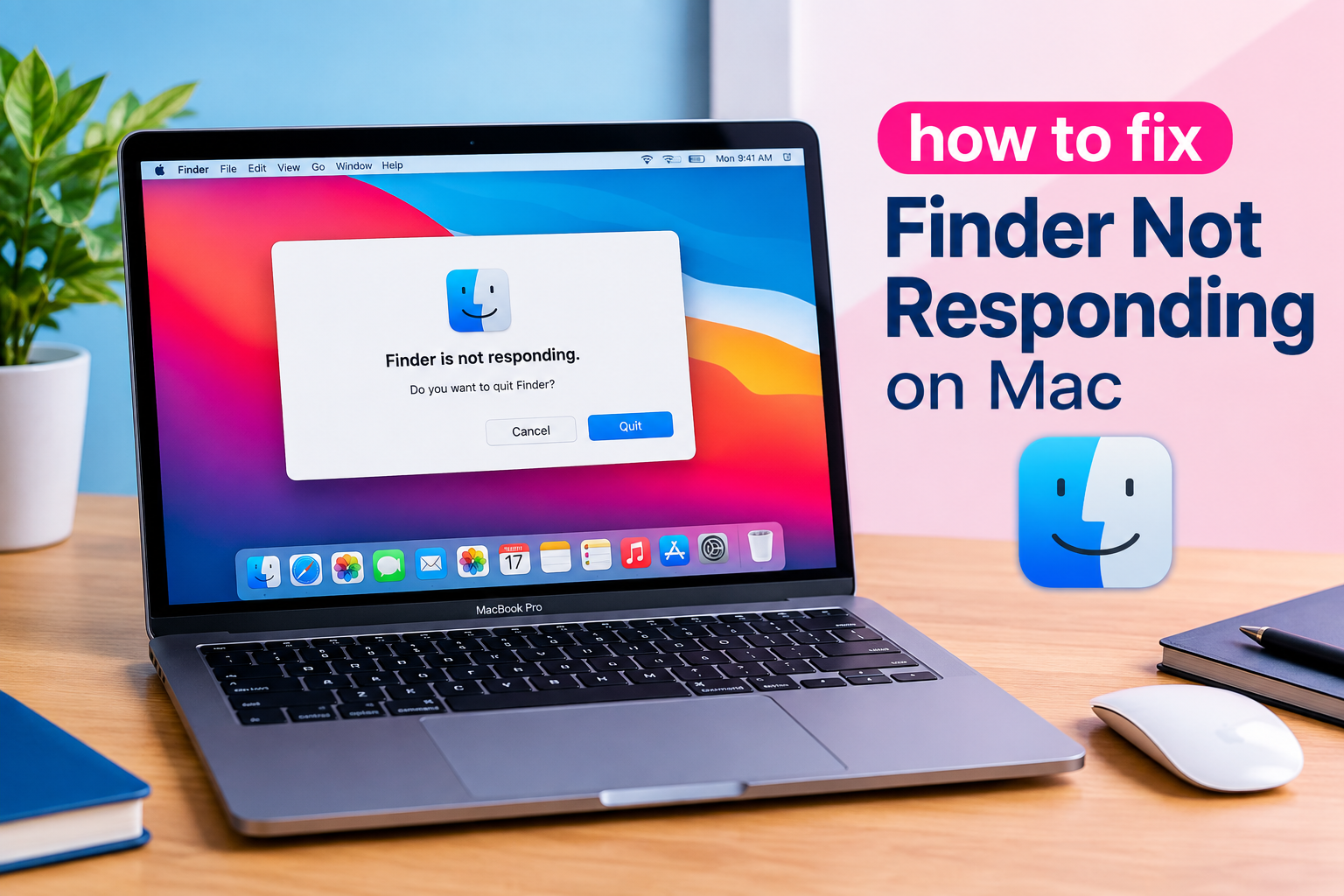
Quick Answer: To fix finder not responding on Mac, press Option + Command + Esc, select Finder, and click Relaunch. If it still freezes, restart your Mac, update macOS, free up storage, eject external drives, and reset the Finder preferences file.
Why Is Finder Not Responding on Mac?
Finder is always running in the background, so you never really “open” it. That also means small problems pile up without you noticing. Your Finder may freeze because:
- Your Mac is running low on storage space.
- A macOS update didn’t install properly.
- An external drive or network folder stopped responding.
- The Finder preferences file has been corrupted.
- A third-party Finder extension is misbehaving.
- iCloud Drive is syncing a large amount of data in the background.
- Your startup disk has small errors.
Here’s a quick way to match what you’re seeing with the likely cause:
What You See | Likely Cause |
|---|---|
Beachball over Finder windows only | A heavy folder or slow drive |
Windows open blank or won’t close | Corrupted preferences |
Right-click menu takes ages | A Finder extension |
“Finder quit unexpectedly” message | A disk error or bad update |
Troubleshooting Steps To Get Finder Working Again
Here are the steps I recommend, in order:
Step 1: Give It a Minute
If you just plugged in a drive or opened a folder with thousands of files, Finder may simply be busy. Why wait? Because a forced relaunch can interrupt a task that’s about to finish. Give it 30 to 60 seconds. If the beachball is still spinning, move on.
Step 2: Force Quit and Relaunch Finder
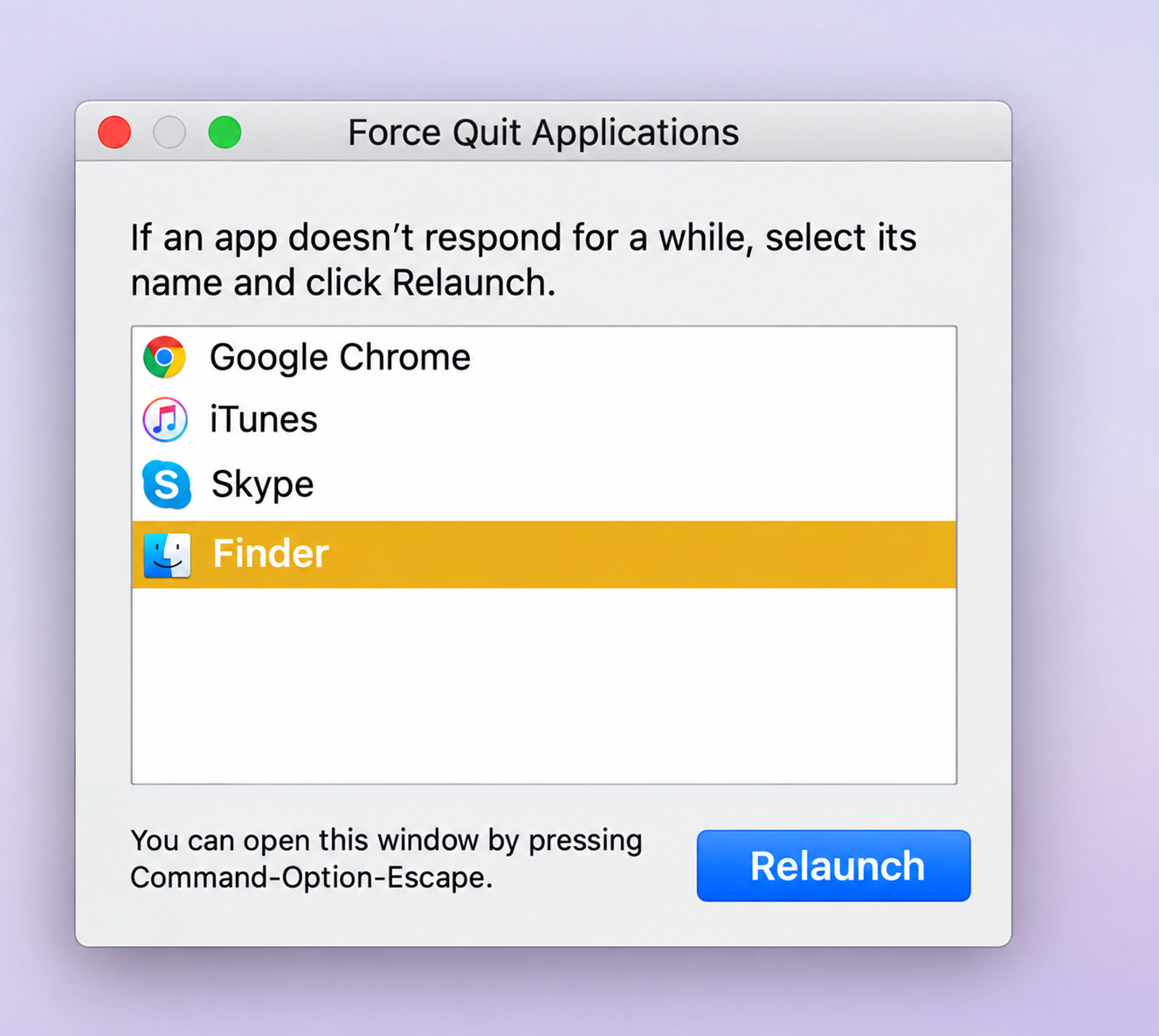
I’ve found that this fixes the problem more often than anything else. Here is how I do it:
- Press Option + Command + Esc on your keyboard
- Select Finder in the list
- Click Relaunch
Why does it say Relaunch instead of Force Quit? Because macOS restarts Finder for you automatically. You can also hold the Option key, right-click the Finder icon in the Dock, and choose Relaunch. If you like Terminal, type killall Finder and press Return.
Read more: How to Fix MS Word 365 on macOS Sonoma (Step-by-Step Guide)
Step 3: Restart Your Mac
A restart clears temporary memory problems that may be jamming Finder. Click the Apple menu and choose Restart. If the menu won’t respond, hold the power button until the Mac shuts down, wait a few seconds, then turn it back on. Just remember that a forced shutdown can cost you unsaved work, so treat it as a last option.
Step 4: Update macOS
Apple often patches Finder bugs in small updates. What should you do? Make sure you’re running the latest version. Here is how I check:
- Click the Apple menu at the top left corner of the screen
- Open System Settings
- Go to General > Software Update
- Click Update Now if one is available
Step 5: Free Up Storage Space
A nearly full drive is one of the biggest causes of finder not responding on Mac, and people overlook it all the time. Your Mac needs free room for temporary files, and Finder struggles when there isn’t any. Here’s what to do:
- Open System Settings > General > Storage
- Check what is taking up the most space
- Empty the Trash and delete old downloads
- Remove apps you no longer use
Try to keep roughly 10 to 15 percent of your drive free.
Step 6: Eject External Drives and Network Folders
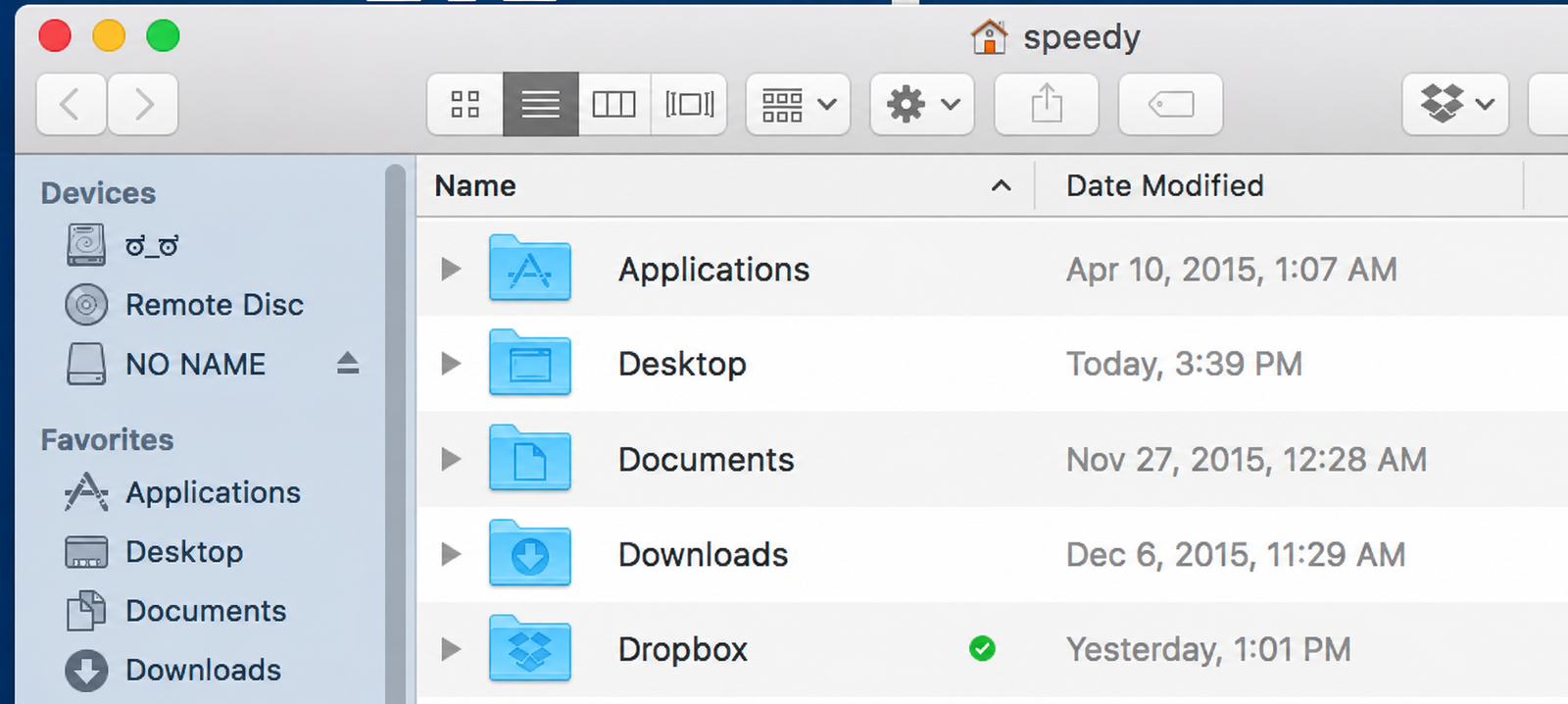
Finder tries to keep every connected volume up to date. If one of them is slow or damaged, Finder waits for it and hangs. What do I mean? I mean a single bad USB stick can freeze your whole desktop. Eject every external drive, unplug anything that won’t eject, and disconnect network folders. Then plug them back in one at a time to find the culprit.
Step 7: Reset Finder Preferences
Corrupted preference files often cause repeated freezing, especially after you change Finder settings. Here’s how to reset them:
- Click your desktop, then press Shift + Command + G
- Type ~/Library/Preferences/ and press Return
- Find the file named com.apple.finder.plist
- Drag it to your Desktop as a backup
- Relaunch Finder using Step 2
Finder rebuilds the file from scratch. You’ll lose custom sidebar and view settings, but the freezing often disappears.
Step 8: Run Disk Utility First Aid
If the freezes keep coming back, small disk errors may be the reason. Follow these steps:
- Open Applications > Utilities > Disk Utility
- Select Macintosh HD in the sidebar
- Click First Aid, then Run
If it finds errors it can’t repair, back up your files right away, because that can point to a failing drive.
Step 9: Try Safe Mode
Safe Mode turns off third-party extensions and clears some caches, so it helps you tell whether macOS or one of your apps is to blame.
Method 1: Apple silicon Macs
- Shut down your Mac, then hold the power button until you see startup options
- Select your startup disk
- Hold Shift and click Continue in Safe Mode
Method 2: Intel Macs
- Restart your Mac
- Immediately hold Shift until the login window appears
If Finder works fine in Safe Mode, a login item or Finder extension is likely the problem. Restart normally and remove recently installed apps one at a time.
Which Fix Should You Try First?
If you’re short on time, this table shows where to start:
Fix | Time Needed | Best For |
|---|---|---|
Relaunch Finder | 10 seconds | Sudden freezes |
Restart your Mac | 2 minutes | General slowdowns |
Free up storage | 10 to 30 minutes | A sluggish Mac |
Reset preferences | 5 minutes | Repeated freezing |
Disk Utility | 10 to 20 minutes | Possible disk errors |
How To Stop Finder Not Responding on Mac From Coming Back
Once it’s fixed, a few habits will keep it that way:
- Install macOS updates as soon as they appear
- Leave a healthy amount of free storage
- Eject drives properly before unplugging them
- Use folders instead of piling hundreds of files on your Desktop
- Remove apps and Finder extensions you no longer use
When To Contact Apple Support
If you’ve tried everything and Finder still freezes, it’s time to get help. Book a Genius Bar appointment or contact Apple Support if Disk Utility reports errors it can’t fix, or if Finder freezes automatically in Safe Mode. Back up your files with Time Machine first, because reinstalling macOS should always be the last resort.
FAQs
These are the answers to some frequently asked questions about Finder on Mac:
#1: Why Does Finder Keep Freezing on My Mac?
Repeated freezing usually comes from low storage, corrupted Finder preferences, a faulty extension, or a slow external drive. Start by relaunching Finder, then free up space and reset the preferences file.
#2: Will Relaunching Finder Delete My Files?
No, it won’t. Relaunching only restarts the file manager, so your documents, photos, and folders stay untouched. Just save any open work first, since some apps may be waiting on Finder.
#3: How Do I Force Quit Finder on a Mac?
Press Option + Command + Esc, select Finder, and click Relaunch. You can also hold Option, right-click the Finder icon in the Dock, and choose Relaunch from the menu.
Final Thoughts
Dealing with finder not responding on Mac feels serious in the moment, but the fix is usually simple. Start with a relaunch, move on to a restart, and then work through storage, external drives, preferences, and Disk Utility. In most cases, one of the first few steps gets you back to normal within minutes. Go in order, and don’t skip the backup if you suspect a disk problem.
Related Contents:
- How to Fix MS Word 365 on macOS Sonoma (Step-by-Step Guide)
- 5G Network: Everything You Need to Know
- Wi-Fi 6 Vs. Wi-Fi 5: What are the differences?
- WiFi Vs. Ethernet: Which one is Faster?
- How to Protect your Home WiFi Network: An Updated Step-by-Step Security Guide
- Top 5 Best Open Source Firewalls for Home Networks
- Best Secure Routers for IoT Device Management
- VPN vs. Router Firewall: Which Do You Need for Home Network Security?
- How to Fix Bluetooth Not Working on Mac (10 Proven Fixes)