
Written by: Segun Akomolafe
Your mouse freezes mid-click. Your AirPods drop out right when the meeting starts. Or worse, you open the menu bar and Bluetooth shows “Not Available,” with a grey icon that refuses to respond. If you’re struggling with Bluetooth not working on Mac right now, don’t worry, this is one of the most common Mac issues and it’s almost always fixable at home. Bluetooth is how your Mac connects to your keyboard, mouse, headphones, speakers and even your iPhone, so when it goes on the fritz it can feel like half of your setup has stopped working.
In this guide I’ll explain why it happens and walk you through ten fixes, starting with the easiest. So without further ado, let’s get started!
Quick Answer: To Fix Bluetooth Not Working on Mac, turn Bluetooth on and off in the Control Center. Restart your Mac. Make sure your accessory is charged and in pairing mode. If it still doesn’t work, try deleting the device in System Settings > Bluetooth and pairing it again. Update macOS and restart the Bluetooth service with Terminal.
Why is Bluetooth not working on Mac?
Bluetooth is humming along in the background, so you don’t think about it until it fails. The cause is usually trivial. Your Bluetooth may fail because:
- The accessory has a low battery or isn’t in pairing mode.
- A temporary software glitch is blocking the Bluetooth service.
- Wireless interference from Wi-Fi, USB hubs, or other devices is getting in the way.
- The old pairing record for your device has become corrupted.
- A recent macOS update didn’t install properly or has a known bug.
- The Bluetooth preference files are damaged.
- Your accessory firmware is outdated or too old for your current macOS.
Here’s a quick way to match what you’re seeing with the likely cause:
What You See | Likely Cause |
|---|---|
Bluetooth icon is greyed out or says “Not Available” | The Bluetooth service has crashed |
Device shows up but won’t connect | A corrupted pairing record |
Mouse or keyboard lags and stutters | Wireless interference |
Audio cuts out or sounds muffled | Too many connected devices or the microphone mode |
Devices disconnect after sleep | A software glitch or outdated macOS |
Mac can’t find any devices at all | Damaged preference files |
How To Fix Bluetooth Not Working on Mac
Here is the short version, in the order I recommend:
- Turn Bluetooth off and on
- Check your accessory (battery, power, pairing mode)
- Restart your Mac
- Reduce wireless interference
- Forget the device and pair it again
- Update macOS and the accessory firmware
- Restart the Bluetooth service in Terminal
- Delete the Bluetooth preference files
- Reset NVRAM or SMC (Intel Macs) or fully shut down (Apple silicon Macs)
- Try Safe Mode
Now let’s go through each one properly.
Step 1: Turn Bluetooth Off and On
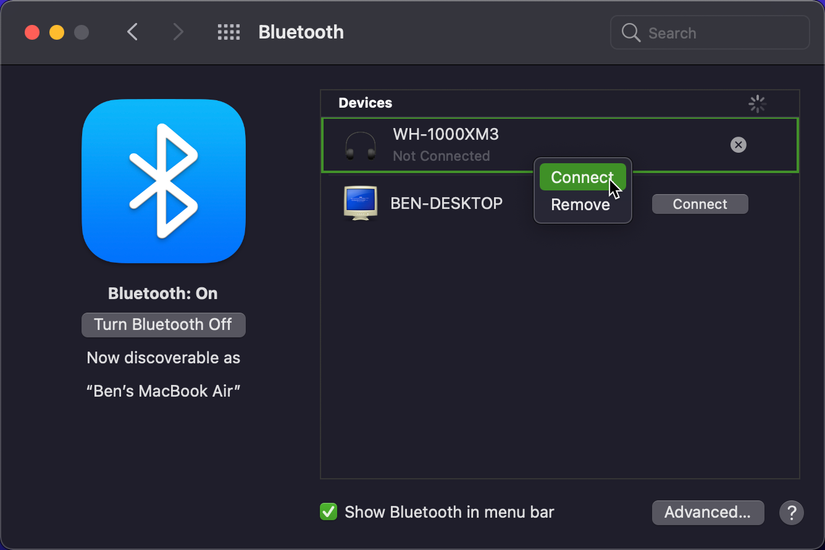
This sounds too simple to work, but I’ve found it clears more random Bluetooth glitches than most people expect. Here is how I do it:
- Click Control Center in the menu bar (the two toggle switches)
- Click the Bluetooth button to turn it off
- Wait about 10 seconds
- Click it again to turn Bluetooth back on
You can do the same in System Settings > Bluetooth. Why wait 10 seconds? Because it gives the Bluetooth hardware enough time to fully reset before it starts again.
Step 2: Check Your Accessory First
Before you blame the Mac, take a quick look at the device itself. It happens more than you’d think. Here’s what to check:
- Make sure the accessory is turned on and fully charged (or has fresh batteries)
- Put it back into pairing mode, which is usually a button you hold until a light blinks
- Move it closer to your Mac, ideally within a few feet
- Try the accessory with another device, like your phone, to see if it works there
If the accessory fails on a second device too, the problem is the accessory, not your Mac.
Read more: How to Fix Finder Not Responding on Mac (Step-by-Step Guide)
Step 3: Restart Your Mac
A restart clears temporary memory problems that may have jammed the Bluetooth service. Click the Apple menu and choose Restart. If your Bluetooth mouse and keyboard have stopped working, use the built-in trackpad or a wired mouse, or press the power button and choose Restart from the dialog. Just remember to save your work first.
Step 4: Reduce Wireless Interference
Bluetooth shares the 2.4 GHz radio band with many other things, including some Wi-Fi networks, cordless phones, and microwaves. Apple also notes that wireless interference can cause both Wi-Fi and Bluetooth issues. If your mouse lags or your audio stutters, try this:
- Unplug USB hubs and external drives (especially USB 3 devices) from the ports near your Bluetooth accessory
- Move your router away from your Mac, or switch to the 5 GHz Wi-Fi band if your router offers it
- Turn off Bluetooth devices you’re not using, because too many connections can make audio choppy
- Keep metal objects and thick walls out of the line between the Mac and the accessory
Read more: Wi-Fi 6 Vs. Wi-Fi 5: What are the differences?
Step 5: Forget the Device and Pair It Again
If one device refuses to connect while others work fine, the saved pairing record is probably corrupted. Removing it and pairing again gives you a clean connection. Here’s how:
- Click the Apple menu and open System Settings
- Select Bluetooth in the sidebar
- Click the info (i) icon next to the problem device
- Choose Forget This Device and confirm
- Put the accessory in pairing mode and click Connect when it appears in the list
On older versions of macOS, you’ll find the same option by hovering over the device in System Preferences > Bluetooth and clicking the small X.
Step 6: Update macOS and Your Accessory Firmware
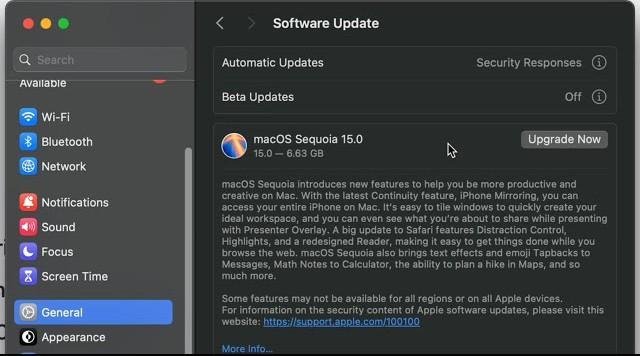
Some Bluetooth bugs come from a specific macOS release, and Apple usually fixes them in small updates. Users reported plenty of connection drops, laggy mice, and AirPods cutting out after the macOS Tahoe release, so updating matters. What should you do? Make sure both your Mac and your accessory are up to date. Here is how I check:
- Click the Apple menu and open System Settings
- Go to General > Software Update
- Click Update Now if one is available
Then check your accessory. AirPods, Magic Mouse, and Magic Keyboard update automatically when connected to your Mac or iPhone. Third-party devices like Logitech accessories often need their own app to install a firmware update.
Step 7: Restart the Bluetooth Service in Terminal
If the Bluetooth icon is greyed out, or Bluetooth says “Not Available,” the background service that runs Bluetooth, called bluetoothd, may have crashed. Restarting it often brings Bluetooth back without a full reboot. Here is how:
- Press Command + Space, type Terminal, and press Return
- Type sudo pkill bluetoothd and press Return
- Enter your Mac password when asked (you won’t see it as you type) and press Return
- Wait a few seconds while macOS restarts the service automatically
Older guides tell you to hold Shift + Option and click the Bluetooth icon to find a hidden Debug menu. Apple removed that menu in newer versions of macOS, so the Terminal command is the safer route today.
Step 8: Delete the Bluetooth Preference Files
Corrupted preference files can stop your Mac from seeing any device at all. Deleting them forces macOS to build fresh ones. Before you start, keep in mind that you’ll need to pair your devices again afterward. Here’s how to reset them:
- Click your desktop, then press Shift + Command + G
- Type /Library/Preferences/ and press Return
- Find the file named com.apple.Bluetooth.plist
- Drag it to your Desktop as a backup
- Press Shift + Command + G again, type~/Library/Preferences/ByHost/, and press Return
- Move any files that start with com.apple.Bluetooth to your Desktop as well
- Restart your Mac
If your keyboard and mouse are Bluetooth-only, plug in a wired one or use the trackpad first, so you aren’t locked out after the restart.
Step 9: Reset NVRAM or SMC (Intel Macs) or Fully Shut Down (Apple Silicon)
This step depends on your Mac:
Method 1: Apple silicon Macs (M1 and newer)
- Click the Apple menu and choose Shut Down
- Wait about 30 seconds
- Press the power button to turn the Mac back on
These Macs reset the low-level settings automatically at startup, so a full shutdown does the job.
Method 2: Intel Macs
- Shut down your Mac, then turn it on and immediately hold Option + Command + P + R for about 20 seconds to reset the NVRAM
- If Bluetooth is still down, reset the SMC. The steps differ by model, so search Apple Support for “reset the SMC” along with your exact Mac model
Step 10: Try Safe Mode
Safe Mode loads only the essentials, so it helps you tell whether macOS or a third-party app is to blame. This matters because menu bar utilities and other background apps have been reported to interfere with Bluetooth on some Macs.
Method 1: Apple silicon Macs
- Shut down your Mac, then hold the power button until you see startup options
- Select your startup disk
- Hold Shift and click Continue in Safe Mode
Method 2: Intel Macs
- Restart your Mac
- Immediately hold Shift until the login window appears
If Bluetooth works fine in Safe Mode, an app or login item is the likely cause. Restart normally and remove recently installed apps one at a time.
Common Bluetooth Problems on Mac (And Quick Fixes)
Sometimes the problem is more specific than “Bluetooth is dead.” These are the ones I see most often:
Sound quality drops when using Bluetooth headphones. This usually happens when an app starts using your headphones’ built-in microphone, which pushes Bluetooth into a lower-quality mode. Quit apps like video call tools, then open Control Center > Sound, pick your Mac speakers, and select your headphones again.
Bluetooth devices disconnect after your Mac wakes from sleep. Turn Bluetooth off and on, then update macOS. If it keeps happening, delete the preference files in Step 8.
Your Mac can’t find any devices. Restart the Bluetooth service in Step 7, then check that the accessory is in pairing mode and close enough to the Mac.
Bluetooth is greyed out in the Control Center. Run the Terminal command in Step 7, then restart your Mac.
Which Fix Should You Try First?
If you’re short on time, this table shows where to start:
Fix | Time Needed | Best For |
|---|---|---|
Turn Bluetooth off and on | 15 seconds | Sudden, random glitches |
Check the accessory | 2 minutes | One device not connecting |
Restart your Mac | 2 minutes | General Bluetooth hiccups |
Forget and re-pair | 3 minutes | A single stubborn device |
Update macOS | 10 to 30 minutes | Bugs after a recent update |
Restart Bluetooth service | 1 minute | Greyed-out Bluetooth icon |
Delete preference files | 5 minutes | No devices found at all |
How To Stop Bluetooth Not Working on Mac From Coming Back
Once it’s fixed, a few habits will help keep it that way:
- Install macOS updates as soon as they appear
- Keep your accessories charged and their firmware updated
- Disconnect Bluetooth devices you aren’t using
- Restart your Mac every few days instead of only closing the lid
- Keep USB hubs and routers away from your Bluetooth accessories
- Remove apps you no longer use, especially ones that run in the menu bar
When To Contact Apple Support
If every last trick didn’t work and you’re still having Bluetooth troubles, then its more than likely a hardware issue. Book yourself in at the Genius Bar or get in touch with Apple Support if Bluetooth is still on the fritz in Safe Mode, your computer won’t connect to any devices even after resetting the preference files, or the Bluetooth option has just vanished from System Settings altogether. Just a heads up: before you go about reinstalling the OS make sure you’ve backed up your files using Time Machine.
FAQs
Here are the answers to some of the most frequently asked questions about Bluetooth on Mac:
#1: Why is Bluetooth Not Working on My Mac?
Most of the time, Bluetooth just stops working because of a temporary software hiccup, a dodgy pairing record, wireless interference from somewhere, or a dead accessory battery. Try switching Bluetooth off and on, then give your Mac a restart and re-pair the device.
#2: How do I Get the Bluetooth Module Working on My Mac Again?
On newer versions of macOS, just fire up Terminal, type ‘sudo pkill bluetoothd’, press enter, and enter your password when prompted. The service will hopefully restart itself. If that doesn’t sort it, have a go at deleting the Bluetooth preference files and then give your Mac a restart.
#3: Why Does My Mac Say Bluetooth is Not Available?
This usually means the Bluetooth service has crashed or your Mac is having trouble talking to the Bluetooth hardware. First, try giving your Mac a restart, then restart the service in Terminal. If the message persists, try booting in Safe Mode or give Apple Support a call.
#4: Will Forgetting a Bluetooth Device Wipe Anything Off My Mac?
No. forgetting a device just removes the saved pairing record between the accessory and your Mac. Your files and settings stay safe – and you can pair it all up again at any time.
#5: Why Do My AirPods Keep Dropping the Connection To My Mac?
Drops in connection are usually down to interference, too many Bluetooth devices connected, or a bug in the current OS version. Try moving closer to your Mac, disconnect any devices you don’t need, update your OS and at the very least try forgetting and re-pairing your AirPods if the problem persists.
Final Thoughts
Getting Bluetooth to work on your Mac can feel like pulling your hair out. Most of the time the fix is pretty simple. First, try switching Bluetooth on and off – then move on to a restart, and from there try re-pairing, updating, the Terminal reset and the preference files. In most cases, one of the first few steps will have your devices connected again in no time.
Related Contents:
- How to Fix Finder Not Responding on Mac (Step-by-Step Guide)
- How to Fix MS Word 365 on macOS Sonoma (Step-by-Step Guide)
- Wi-Fi 6 Vs. Wi-Fi 5: What are the differences?
- WiFi Vs. Ethernet: Which one is Faster?
- How to Protect your Home WiFi Network: An Updated Step-by-Step Security Guide
- VPN vs. Router Firewall: Which Do You Need for Home Network Security?
- How to Setup a Home Wi-Fi Network
- Best GPS Navigation Systems for Autonomous Vehicles