
Written by: Segun Akomolafe
Setting up a reliable home Wi-Fi network has become as essential as having electricity or running water in modern households. Whether you are moving into a new home, upgrading your internet service, or simply tired of dead zones and slow speeds, learning how to set up a home WiFi network properly can transform your digital experience. With over 4.9 billion internet users worldwide and the average household containing 25 connected devices, a robust Wi-Fi network isn’t just convenient—it is necessary.
This comprehensive guide draws from industry best practices, networking expertise, and real-world testing to walk you through every step of creating a high-performance home network. We’ll cover everything from choosing the right equipment to optimizing signal strength and securing your network against unauthorized access.
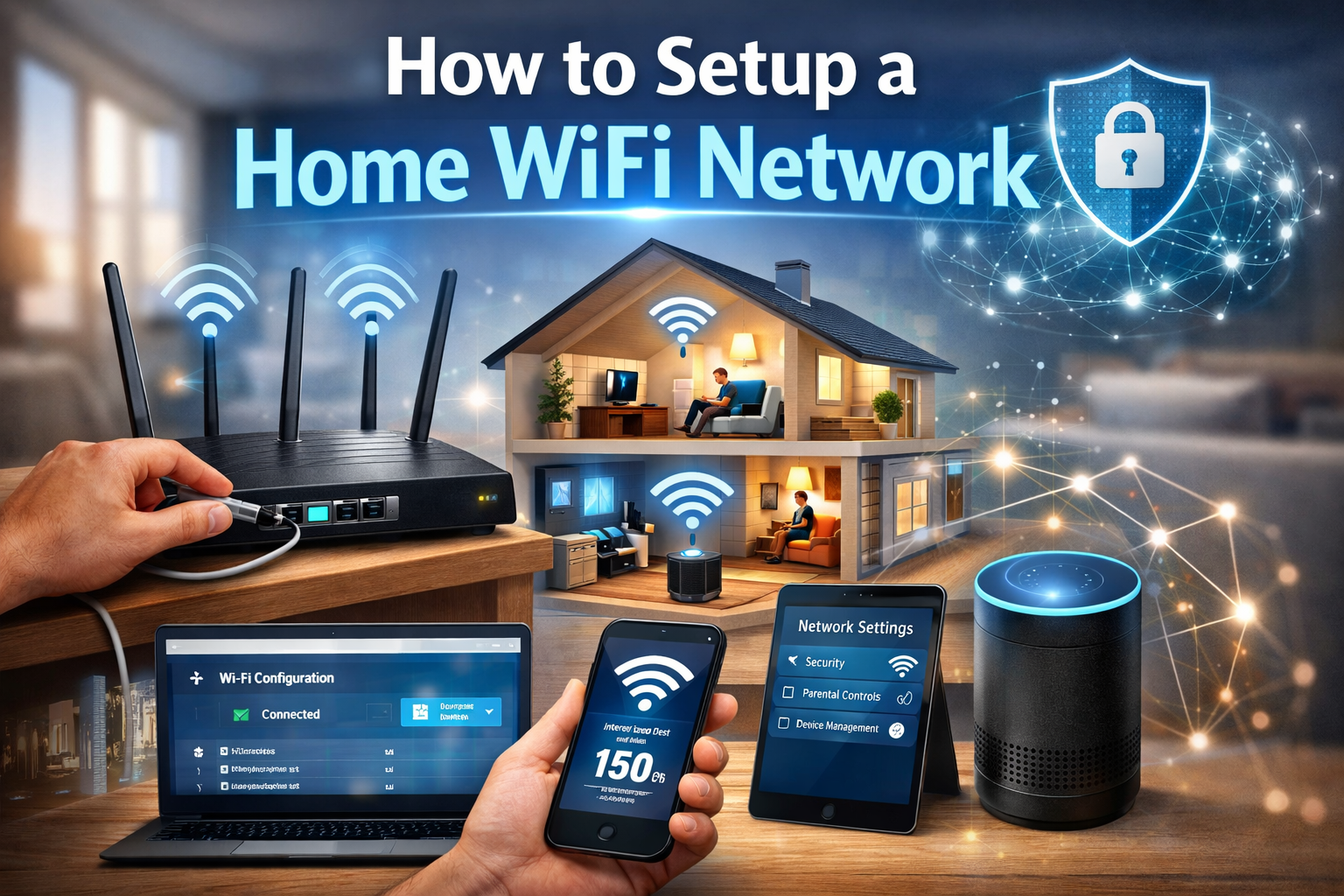
Understanding Your Internet Connection and Equipment Needs
Before you can successfully set up a home WiFi network, you need to understand the fundamental components that make internet connectivity possible. Your internet service comes from an Internet Service Provider (ISP) through a physical connection—typically cable, fiber optic, or DSL. This connection enters your home through a modem, which translates the ISPs signal into data your devices can use.
The router then takes this wired internet connection and broadcasts it wirelessly throughout your home. Many modern ISPs provide combination modem-router units, but separating these devices often gives you better performance and more control. Understanding this equipment hierarchy is the first step in how to setup a home WiFi network that meets your specific needs.
Essential Equipment for Home Wi-Fi Networks
|
Device Type |
Function |
Recommended Specs |
Price Range |
|---|---|---|---|
|
Modem |
Connects to ISP signal |
DOCSIS 3.1 for cable |
$80-$200 |
|
Wireless Router |
Broadcasts Wi-Fi signal |
Wi-Fi 6 (802.11ax) |
$100-$300 |
|
Mesh System |
Extends coverage |
Tri-band, 2+ nodes |
$200-$600 |
|
Range Extender |
Boosts existing signal |
Dual-band minimum |
$30-$150 |
Read more: WiFi 6 Vs. WiFi 5: What are the differences?
Step-by-Step Guide: How to Setup a Home WiFi Network from Scratch
Now that you understand your equipment needs, let’s walk through the actual process of how to set up a home WiFi network. This systematic approach ensures you don’t miss critical steps that could compromise performance or security.
Setting up a home Wi-Fi network involves positioning the router centrally, connecting it to a modem via Ethernet and configuring security settings (SSID/password) via a browser or app.
Step 1: Position Your Modem and Router Strategically
Location matters significantly for Wi-Fi performance. Place your router in a central location, elevated off the floor, away from walls and metal objects. Avoid placing it near microwave ovens, cordless phones, or baby monitors, as these devices operate on similar frequencies and cause interference. The signal radiates outward in all directions, so a central position maximizes coverage throughout your home.
Step 2: Connect Your Modem to the Internet Source
Connect the coaxial cable (for cable internet), phone line (for DSL), or fiber optic cable to your modem’s input port. Secure the connection tightly to prevent signal loss. Power on the modem and wait 2-3 minutes for it to establish a connection with your ISP. The indicator lights should show a stable connection—consult your modem’s manual for specific light patterns that indicate successful connectivity.
Step 3: Connect Router to Modem
Using an Ethernet cable, connect your modem’s output port (usually labeled Ethernet or LAN) to your router’s WAN or Internet port. This port is typically a different color than the LAN ports. Power on your router and wait for it to boot up completely—this usually takes 1-2 minutes. When learning how to set up a home WiFi network, this wired connection between modem and router is the backbone of your entire system.
Step 4: Access Router Configuration Interface
Connect a computer or mobile device to the router’s default Wi-Fi network (the network name and password are usually printed on a sticker on the router). Open a web browser and type the router’s IP address into the address bar—commonly 192.168.1.1 or 192.168.0.1. Enter the default admin credentials (also printed on the router). You’ll now access the router’s configuration dashboard where all critical settings are managed.
Read more: How to Optimize Motion Control in Autonomous Vehicles
Configuring Essential Wi-Fi Settings for Optimal Performance
Once you’ve accessed your router’s admin panel, proper configuration is crucial. The decisions you make here directly impact your network’s speed, security, and reliability. When you set up a home WiFi network correctly from the start, you avoid countless troubleshooting headaches later. It’s good for you to enable WPA3 encryption for better security, and always consider upgrading to WiFi 6 or a mesh system for your larger homes.
Change Default Network Name (SSID)
Navigate to the wireless settings section and create a unique SSID (network name). Avoid using personal information like your address or last name. A distinctive but non-identifying name like SkyNet_5G; or Blue_Dragon_Network works well. This prevents targeted attacks and makes your network easily identifiable among neighbors’ networks. Connect to the default Wi-Fi network name (SSID) on the bottom or back of the router using a computer or smartphone.
Set a Strong Wi-Fi Password
Create a password with at least 12-16 characters combining uppercase letters, lowercase letters, numbers, and symbols. Avoid dictionary words, personal information, or predictable patterns. A passphrase using random words like TelescopeMarble Mountain is both secure and memorable. This is one of the most critical security measures when you set up a home WiFi network.
Select Security Protocol
Always choose WPA3 if available, or WPA2 at minimum. Never use WEP or WPA, as these older protocols have known vulnerabilities. WPA3 provides the strongest data encryption and protects against brute-force attacks. Enable this in the security settings section of your router’s configuration interface.
Wi-Fi Security Protocol Comparison
|
Protocol |
Security Level |
Recommendation |
Notes |
|---|---|---|---|
|
WEP |
Very Weak |
Never Use |
Crackable in minutes |
|
WPA |
Weak |
Avoid |
Deprecated since 2006 |
|
WPA2 |
Strong |
Acceptable |
Minimum for modern use |
|
WPA3 |
Very Strong |
Highly Recommended |
Latest standard (2018+) |
Read more: Understanding V2X Technology in Autonomous Driving
Advanced Optimization Techniques for Your Home Network
After completing the basic setup, implementing advanced optimizations can significantly improve your network’s performance. These professional-grade techniques separate average networks from exceptional ones.
Choose the Right Wi-Fi Channel
Wi-Fi routers broadcast on specific channels within the 2.4 GHz and 5 GHz bands. Neighboring networks on the same channel cause interference, slowing everyone down. Use a Wi-Fi analyzer app to identify the least congested channel in your area. For 2.4 GHz, channels 1, 6, and 11 are best as they don’t overlap. For 5 GHz, most routers automatically select the clearest channel, but manual selection can yield better results in dense urban areas. Optimizing your wireless network performance prevents frustrating connection drops and ensures faster internet speeds for daily activities.
Read more: Best GPS Navigation Systems for Autonomous Vehicles
Enable Band Steering and Quality of Service (QoS)
Band steering automatically directs capable devices to the faster 5 GHz band while keeping older devices on 2.4 GHz. This balances the load across both bands for optimal performance. QoS settings let you prioritize bandwidth for specific activities like video calls or gaming. Configure QoS to give priority to work-from-home applications during business hours and entertainment streaming during evenings.
Update Firmware Regularly
Router manufacturers release firmware updates to patch security vulnerabilities, fix bugs, and improve performance. Check for updates monthly through your router’s admin interface. Experience smooth wireless connectivity with the latest Wi-Fi standards and get high speed hardware support for all your connected devices. Enable automatic updates if available. Outdated firmware is a major security risk—many large-scale network breaches exploit known vulnerabilities in routers that were never updated.
Troubleshooting Common Wi-Fi Problems
|
Problem |
Likely Cause |
Solution |
|---|---|---|
|
Slow speeds |
Channel interference, distance |
Change channel, move closer to router |
|
Dead zones |
Walls, distance, interference |
Add mesh node or range extender |
|
Frequent disconnections |
Outdated firmware, overheating |
Update firmware, improve ventilation |
|
Can’t connect new devices |
Maximum device limit reached |
Upgrade router, disconnect unused devices |
|
Network showing as unsecured |
No password or weak encryption |
Enable WPA2/WPA3 with strong password |
Read more: Autonomous Vehicle Technology Trends: AI, Sensors & Hardware
FAQs: How to Setup a Home WiFi Network
Here’s the most active and actionable answers to the most frequently asked questions on how to set up a home WiFi network.
1. What equipment do I need to set up a home WiFi network?
You need a modem (provided by or compatible with your ISP), a wireless router, and Ethernet cables. For larger homes, consider adding a mesh system or range extenders to eliminate dead zones and ensure comprehensive coverage. First ensure your router supports modern protocols like dual-band Wi-Fi 6 or Wi-Fi 7 to improve your online experience for multiple smart devices, creating a reliable home network to maximize fast internet performance and secure your wireless connection against potential cyber threats.
2. How long does it take to set up a home WiFi network?
Setting up a home WiFi network can take anywhere from 30 to 75 minutes in total, depending on whether you are planning a basic installation or a secure advanced optimization. Basic setup typically takes 30-45 minutes, including physical connections and initial configuration. Advanced optimization like channel selection, QoS configuration, and security hardening may add another 15-30 minutes for thorough implementation.
3. Should I use the same network name for 2.4 GHz and 5 GHz bands?
Most modern routers use a single SSID with band steering to automatically connect devices to the optimal band. However, separating them gives you manual control and is helpful for troubleshooting connectivity issues with specific devices. Optimizing your wireless network configuration and choosing the right Wi-Fi settings using different names for smart home devices that only work on 2.4 GHz can help avoid connection problems during setup.
Related Contents:
- WiFi 6 Vs. WiFi 5: What are the differences?
- What is a Drone? A Complete Technical & Buyer’s Guide
- Autonomous Vehicle Safety & Testing Protocols
- Understanding V2X Technology in Autonomous Driving
- Autonomous Vehicle Technology Trends: AI, Sensors & Hardware
- Best GPS Navigation Systems for Autonomous Vehicles
- EV Charging Infrastructure Guide
- Electric Vehicles vs. Autonomous Vehicles: Understanding the Key Differences
- How to Fly a Drone
- How to Build a Drone: Step-by-step Guide